· 6 min read
How to convert bank statement PDF to Excel
How to convert a bank statement PDF to Excel four ways: retyping, Excel's PDF import, a chatbot and a converter, what each costs, and how to check it.
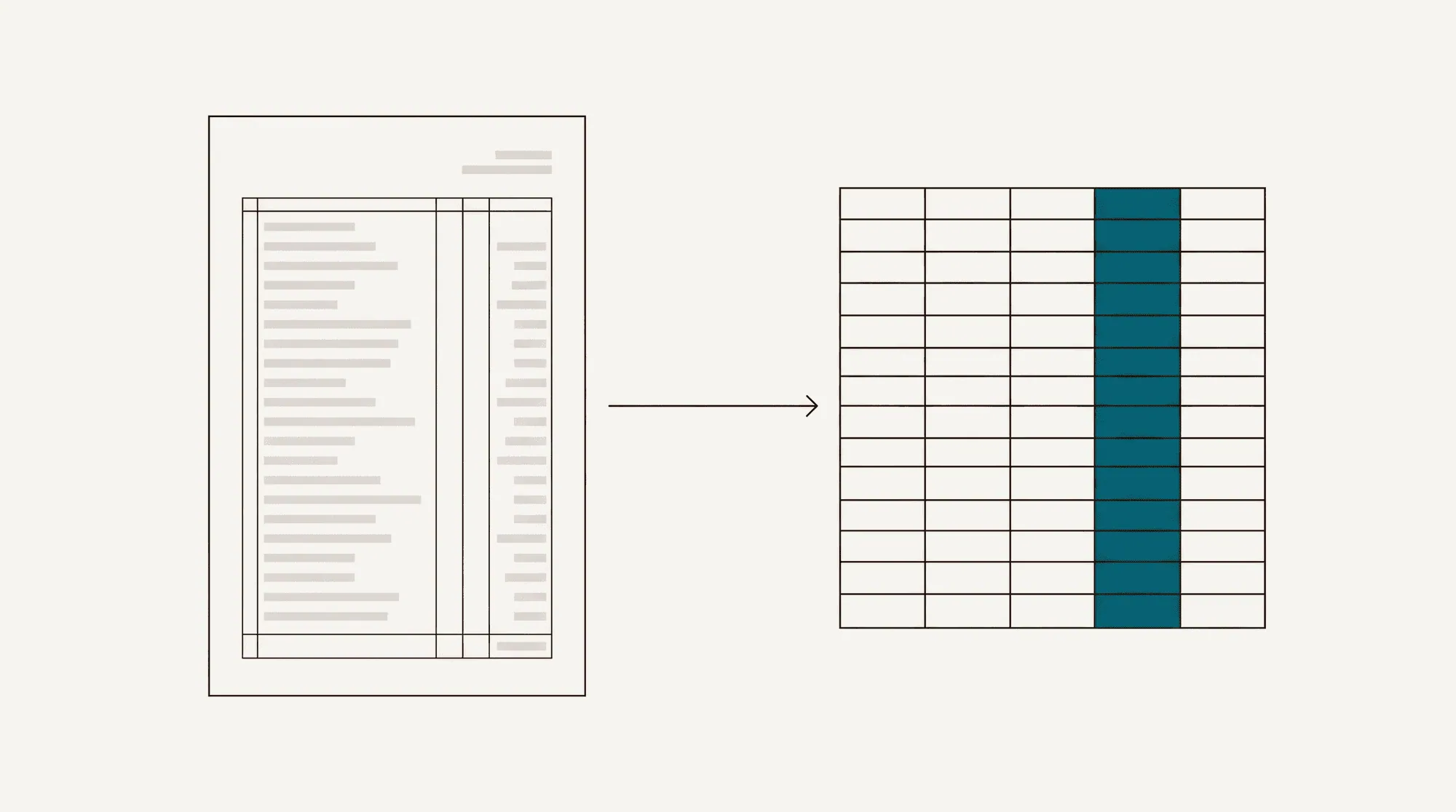
There are four realistic ways to get the rows out of a bank statement PDF and into a spreadsheet. Each one is the right answer for somebody. This article describes what each involves, roughly how long it takes, where it tends to go wrong, and, at the end, the one check you should do whichever method you choose.
Method 1: Retype it
Open the PDF on one side of the screen, a blank sheet on the other, and type.
What it costs. A dense statement page runs 40 to 60 transactions. Most people manage a page in 10 to 20 minutes, then spend another 5 to 10 checking it. A three-page monthly statement is an hour; a year of them is a working week.
Where it falls short. Transposed digits (86.42 typed as 68.42), a skipped line when your eye jumps a row, a sign entered the wrong way. These are quiet errors: the sheet looks finished and nothing about it says a row is missing.
When it is enough. A handful of transactions, a statement with an odd layout that no tool handles, or a situation where the document must not leave your machine. Retyping is slow, but it has no dependencies and no upload.
Method 2: Excel or Google Sheets
Recent versions of Excel can read a PDF directly: Data, then Get Data, then From File, then From PDF. Excel finds the tables on each page and shows them in Power Query, where you pick the ones you want and load them into a sheet. Google Sheets has no PDF import; the usual workaround is to open the PDF in Google Docs, which runs text recognition on it, then copy the text into a sheet and split it into columns.
What it costs. For a native-text PDF with a clean table, a few minutes per statement, plus cleanup. Cleanup is the variable: for some statements it is nothing, for others it is longer than retyping.
Where it falls short. Bank statements are not designed as tables, they are designed to be printed. Descriptions that wrap onto a second line become a second row with no amount. Page headers and footers repeat inside the data. Withdrawals shown in parentheses or with a DR suffix come through as text rather than numbers. Multi-column layouts get merged. And if the PDF is a scan or a phone photo, there is no text to read, so Excel finds nothing and Docs recognition gives you an approximation to clean up.
When it is enough. A statement from a bank that lays its transactions out as one clean table per page, with one line per transaction. If you have one of those, this method is free and quick. Try it once on your bank and you will know.
Method 3: A general chatbot
Upload the PDF, ask for a table, copy it into a sheet.
What it costs. A minute or two for a short statement, plus whatever it takes to reformat the result so it matches last month's sheet.
Where it falls short. The failure modes are different from Excel's, and quieter. Per-conversation page and file limits vary by plan, and a long statement can be cut short without a clear warning. The output is a table with no check behind it, so a dropped row or a misread digit looks the same as a correct one. Column names, date format and the sign convention can change from one run to the next. And if the statement belongs to a client, the professional confidentiality question is real: guidance for accounting firms treats entering client information into a consumer AI service as a disclosure. We have written up the comparison fairly, including what a chatbot does better, at bank statements to Excel with an AI chatbot.
When it is enough. Your own statement, a few pages, you will read every row against the PDF anyway, and you would like to ask questions about the numbers while you are at it. That is a genuinely good use of the tool.
Method 4: A dedicated converter
A converter is built for statements and nothing else. It handles native PDFs, scans and photos, returns fixed columns every time, exports the file formats accounting software wants (QBO, OFX, QFX, QIF as well as XLSX and CSV), and, in our case, recomputes the running balance from the extracted rows and compares it with the balance printed on the statement, row by row.
What it costs. Time: a native-text page converts in 10 to 60 seconds. A phone photo takes longer, because every pixel is read rather than a text layer lifted out. Money: the free tier gives free pages every day (10 a day during the launch offer, normally 3), with or without an account; beyond that, page packs start at $9 for 60 pages and never expire. Details are on the pricing page.
Where it falls short. It is another tool, and it costs money past the free tier. A photo taken in poor light produces rows the check highlights for a second look, which is the point: a converter is only as good as its check. Ours flags the rows that do not add up rather than hiding them, and you should expect the same from any tool you pay for. The method is on how we test.
When it is enough. Client statements, more than a few pages, scans or photos, a QuickBooks or Xero import at the end, or any job you repeat every month.
Side by side
| Retype | Excel or Sheets | General chatbot | Dedicated converter | |
|---|---|---|---|---|
| Cost | Your time | Free | Free tier; paid plans for limits | Free tier; then per page |
| Time per statement page | 15 to 30 min | Minutes, plus cleanup | A minute or two, plus reformatting | 10 to 60 seconds |
| Scans and photos | Yes, slowly | No (Excel); rough (Docs) | Usually, no check | Yes, with the check |
| Same columns every time | If you are careful | After cleanup | Varies between runs | Yes |
| QBO, OFX, QFX, QIF | No | No | No | Yes |
| Balance check | Only if you add it | Only if you add it | Only if you add it | Built in, per row |
| Client data stays out of a consumer service | Yes | Yes | Depends on plan and settings | File deleted after the conversion |
Check the result before you use it
Whatever method you used, spend two minutes on this before the sheet goes anywhere.
- Opening balance plus deposits minus withdrawals equals the closing balance. Sum the credit column, sum the debit column, and do the arithmetic against the two balances printed on the statement. If it does not match, something is missing, doubled or misread. This single check catches most of the errors that matter.
- Row count. Count the transactions on the statement, or read the count the bank prints in its summary box, and compare it with your sheet.
- First and last rows. Check the first transaction on page one and the last on the final page against the PDF. Page breaks are where rows get dropped.
- Signs. Find one deposit and one withdrawal and confirm each has the sign your destination expects. In the OFX family and most accounting imports, money out is negative.
- Dates. Look at a transaction dated after the 12th of the month and confirm the month was read correctly. Day-first and month-first confusion moves rows silently.
- Amounts as numbers. In Excel, sum the amount column. If the total is zero or a cell is left-aligned, some amounts are text.
- Duplicates across pages. Sort by date and amount and scan for identical neighbors, especially at page boundaries.
If your tool does step 1 for you on every row, you can skip to steps 4 and 5. If it does not, do step 1 yourself every time. The reasoning behind it, with worked numbers, is in what a reconciliation check really catches.