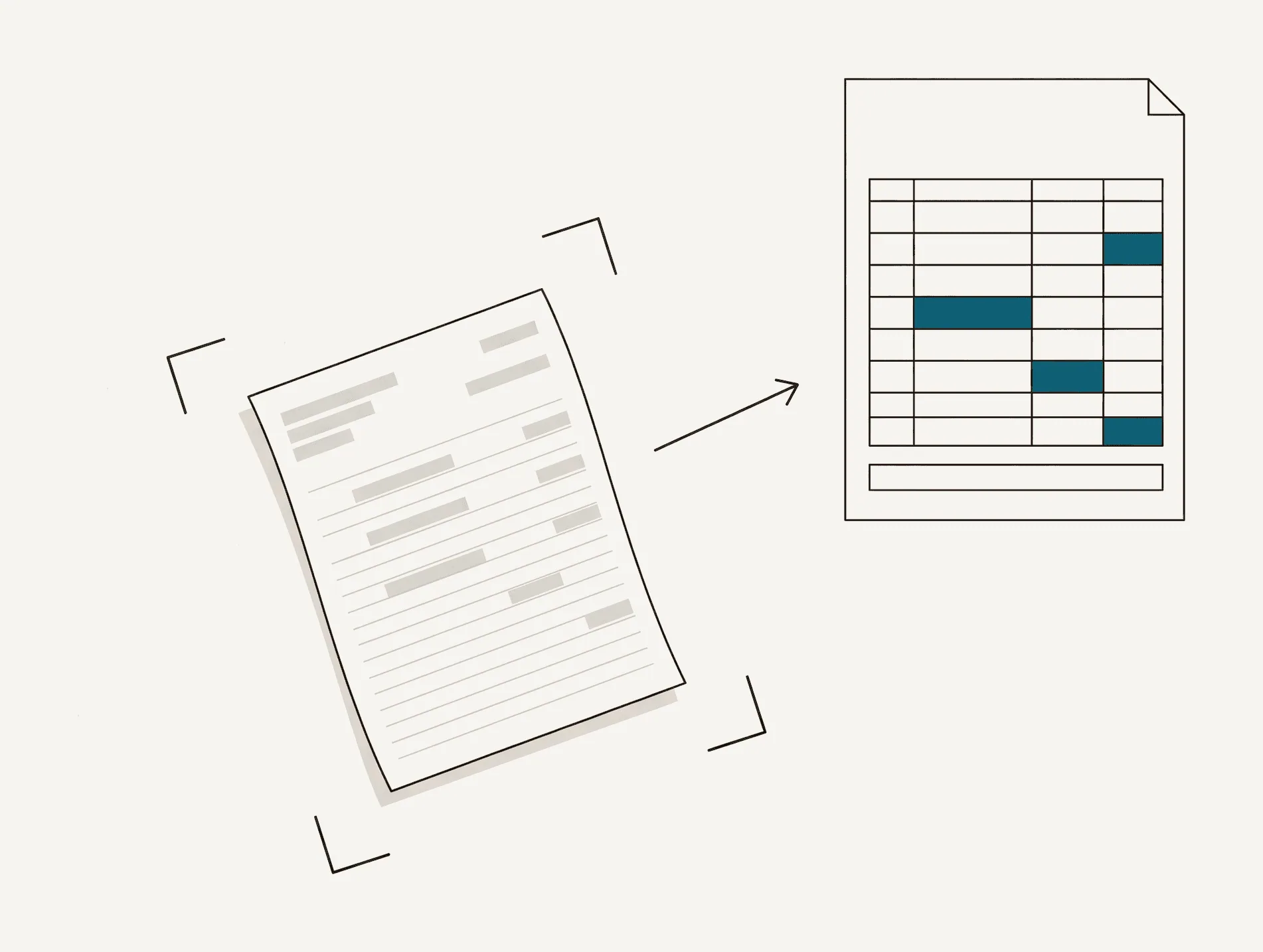
Scanned bank statements and photos to Excel
Not every statement shows up as a clean PDF. Clients photograph paper, banks hand out scans, archives are images. All three go through the same pipeline and the same balance check, so a misread figure surfaces as a flagged row instead of a quiet error in your books.
Last updated September 10, 2026
What you can upload
- A scanned PDF, at whatever resolution your scanner produced, up to 50 MB and 100 pages per conversion
- Up to 100 JPG or PNG photos of one statement, one page per photo, each under 5 MB after your browser shrinks it
- Photos taken with a phone, including slightly angled or shadowed ones
- Several photos of consecutive pages, which become one statement with one balance check
On a phone, the upload button can open your camera directly, so you can shoot a page and convert it without saving it first.
Working through a client's paper file or a box of old statements? Bank statement photos to Excel is the workflow for that job, from shooting the pages to importing the result.
How an image is held to the same standard
Reading a photograph is harder than reading a text layer, and every converter in this category knows it. The difference here is what happens after the reading. A scan goes through the identical balance check as a native PDF: the running balance is rebuilt from the extracted rows and compared, to the cent, against the figure the bank printed on the page you photographed.
- Errors on an image are concentrated in the amounts, which is precisely what the chain tests. A digit read wrong breaks the balance and the row is flagged with the difference.
- The errors the check does not catch are in text: an accented character, a merchant name spelled loosely. Those cost you nothing in a trial balance.
- Scans and photos are routed straight to the stronger reading pass, because on images it earns its extra seconds.
- Every release is validated against a fixed corpus that includes deliberately degraded scans, at low resolution, rotated, noisy and heavily compressed, alongside real phone photographs of paper pages.
There is no single accuracy percentage here, because a percentage measured on our documents cannot tell you how your scanner and your lighting will behave. The check can, on the file itself, and pages are free every day so you can see it before you pay. Method and scope are on how we test.
How to photograph a statement so it converts
- Flatten the page and shoot from directly above. A slight angle is fine; a 30-degree angle is not.
- Get the whole page in frame, including the top header and the bottom of the table. A cut-off closing balance means the check can't run.
- Light it evenly. A window beats a ceiling light directly overhead, which throws your own shadow across the page.
- Don't zoom. Move the phone closer instead. Digital zoom throws away the detail we need.
- One page per photo. Two pages in one frame halves the effective resolution for each.
- Check the balance column is readable to you. If you can't read a digit on your screen, neither can we.
If a statement comes back with several flagged rows, re-shooting it with better light usually fixes more than re-running the same photo.
What makes a scanned page readable goes through resolution, angle and light one at a time.
How long it takes
About 20-40 seconds a page for a scanned PDF and about 15 seconds a photo, against 10-60 seconds for a whole native PDF. Every pixel has to be read rather than lifted out of a text layer. Photos and pages are read five at a time, so a six-photo statement is about two rounds, not six waits. Keep the tab open while it runs: the tab title carries the percentage, so you can work in another tab and look over at it.
One piece of advice worth more than any feature list: if you have the native PDF, use the native PDF. It is faster, it is read more precisely, and it costs the same per page. Photograph a statement when the PDF does not exist, not as a shortcut around finding it.
Images this reader is not built for
- Photos blurred past the point where you can read the amounts yourself. Re-shoot the page rather than re-running the file.
- Pages folded across the transaction table. Flatten the fold and shoot again.
- Screenshots of a banking app's transaction list. There is no statement structure and no printed balance, so the export comes back with the check marked unavailable.
- Statements redacted across the balance column. The transactions extract normally and the export marks the check unavailable, because the figure it would compare against has been removed.
- Handwritten ledgers. This reads printed statements.
- More than 100 photos in one upload, or more than 50 MB of them. Split a longer statement into two conversions.
Why the check matters most here
On a native PDF the extraction is close to exact and the balance check is confirmation. On a scan it is the safety net. A misread digit on a photographed page is the single most likely failure in this whole product, and it is exactly what the check is built to catch. That is why we run it on every file rather than selling it as a premium feature. How the check works.
Questions
How many photos can I upload at once?
Up to 100 photos of one statement, one page per photo, and 50 MB in total. Your browser shrinks each photo before upload; after shrinking, each must be under 5 MB.
Does a photo cost more credits than a PDF page?
No. One photo is one page. It just takes longer to process.
Why did a photo come back with flagged rows when the PDF version passed?
Because a photo is read pixel by pixel and a single smudged or shadowed digit can be misread. The flag is the check doing its job. If you have the native PDF, use it; it is faster and more accurate.
Convert one and see
During the launch offer ten pages a day are free, and you don't need an account to run your own statement through it.