· 4 min read
Xero PDF import: UK and Australia
Xero's direct PDF import covers the US and Canada only. What the UK, Australia, New Zealand and South Africa do instead, step by step.
You read that Xero imports PDF bank statements, you open the statement upload screen, and the option is not there. Nothing is wrong with your subscription and nothing is wrong with the file.
Xero's direct PDF import exists. It is just not available where you are.
What Xero actually shipped
Xero added PDF statement import in May 2024. It carries three limits, and all three are still in place.
Geography. The United States and Canada. The United Kingdom, Australia, New Zealand and South Africa are outside it. This is the limit most people hit, and it is worth saying plainly: Xero is a New Zealand company whose largest markets are Australia and the UK, and the PDF feature reached none of them.
Format. Digital PDFs only. A statement you scanned, or photographed, or received as an image inside a PDF wrapper, is not accepted even inside the US and Canada.
Banks. Supported institutions only, not every PDF that happens to be a bank statement.
Hubdoc, the document tool included with most Xero plans, has the same geographic footprint. It is not the way round the first limit.
Two years after launch the feature has not moved beyond those two countries. It is reasonable to plan on the assumption that it will not reach yours soon.
The route that does work everywhere
Xero has always accepted statement files, in every country, and that path has not changed. What you need is a file in one of the formats it reads.
Xero's own preference order, for manual imports:
- OFX. The open standard for bank data interchange, and the format Xero recommends. It carries the account, the dates and the sign convention inside the file, so there is nothing to map and nothing to misread.
- QIF. Older and plainer. Accepted, and useful when OFX is refused for some reason.
- CSV. Accepted with a mapping step where you tell Xero which column is which. It is the most fragile of the three, because a date column read in the wrong order turns 3 April into 4 March silently.
So the question becomes how to turn a statement PDF into an OFX file.
Step by step
- Download the statement PDFs from online banking, whole statement periods rather than custom date ranges. A statement period prints an opening and a closing balance, and those two numbers are what make the result checkable.
- Convert to OFX with a PDF to OFX converter. Pages are free every day and no account is needed. Scanned statements and phone photographs work here, which matters because that is exactly the case Xero's own import excludes.
- Read the balance check before you import. The conversion rebuilds the running balance from the rows it read and compares it against the balance printed on each line, to the cent. A row that does not add up is flagged where it sits, with the size of the difference. An amount is never quietly corrected on your behalf. Fix a flagged row in the spreadsheet, where it takes a second, rather than in the Xero register, where it takes a hunt.
- Import into Xero. In the Accounting menu select Bank accounts, click the menu icon on the right account, then Import a Statement. Upload the OFX file. Xero shows you what it read before anything is committed.
- Check the statement balance. Xero will show the imported statement's closing balance. It should equal the closing balance printed on the PDF. If those two numbers agree, the import is right.
What trips people up
The bank account must exist first. An OFX file cannot create an account in Xero. Add the bank account, with the right currency, before the first import.
Duplicate detection is per statement line. Xero matches on the details in the file, so importing the same statement twice is usually caught. Importing a period that overlaps a bank feed is not always caught. Cut your statements at the day the feed's history begins.
The date format on CSV. If you fall back to CSV, set the date format in the mapping step explicitly and check one row from the middle of the file, not the first row. A statement whose first transaction is on the 12th tells you nothing about whether the day and the month have been swapped.
Credit-card statements. These go to a credit card account in Xero, not a bank account, and the sign convention is inverted: a purchase increases what you owe. Card statements have their own quirks.
Multi-currency. The statement's currency has to match the Xero account's currency. A statement in one currency imported into an account in another will import, and every figure in it will be wrong.
When an import has already gone wrong, Xero statement import: dates and duplicates goes through Xero's own fixes, from deleting a statement that went in twice to finding a missing line.
Why this is not going away
Xero solved the easy half of the problem: digital PDFs, from large banks, in two countries. The half that is left is the half that was always harder. Scanned statements. Photographs of paper. Small banks and credit unions. Countries with their own date and number conventions. That is a different problem from parsing a clean PDF from a large American bank, and it is why file import is still the path for most of the world.
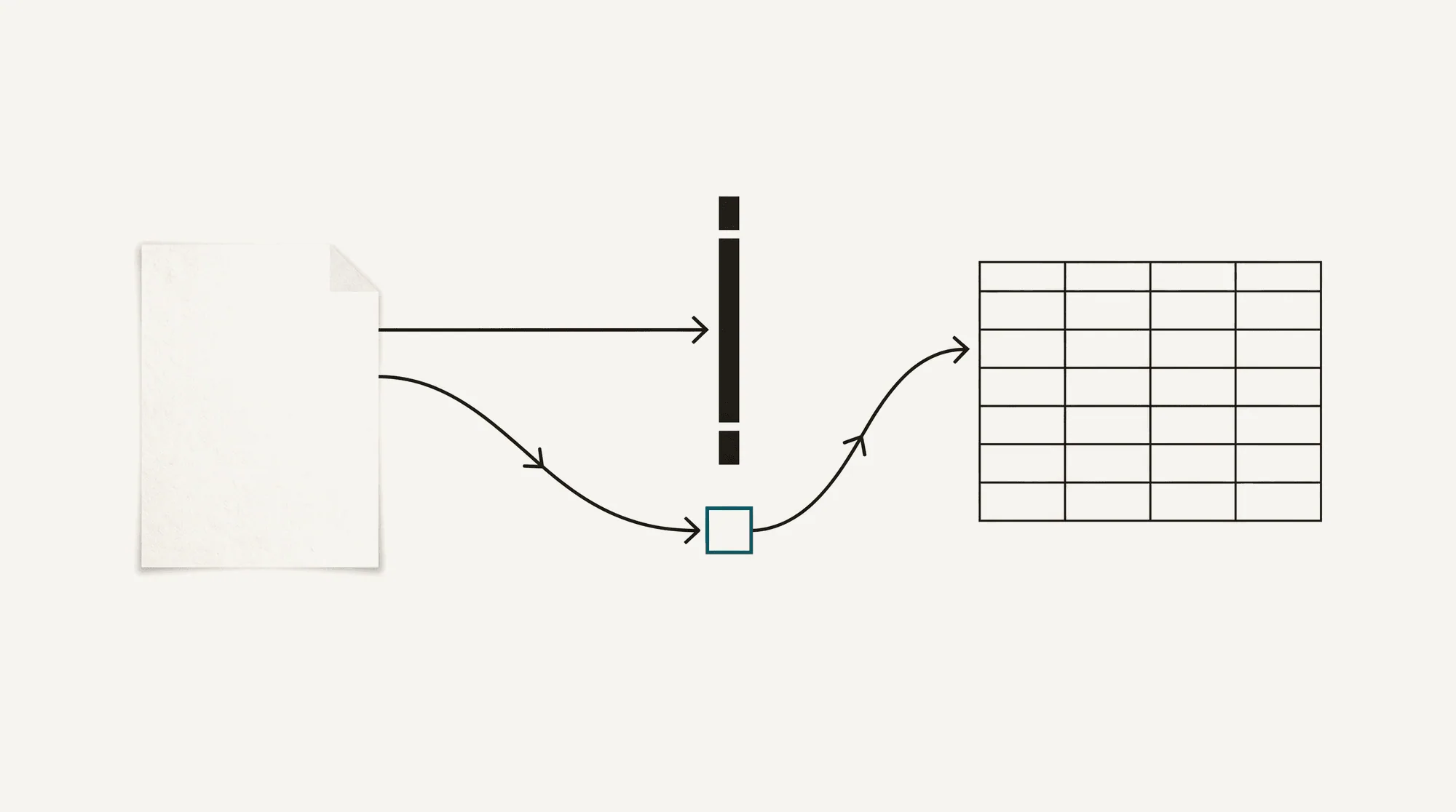
Until it changes, the reliable sequence is the same one accountants have used for years: statement PDF, converted file, checked, imported.
Convert a statement and see the check. Pages are free every day, so trying it costs nothing.